It’s a little bit random
Category: Tech
Technology. We all use it, we all love it. We all hate it.
littleBits Korg Synth kit: The Keyboard
A first outing for my littleBits Korg Synth kit
I’m really enjoying this kit so far!
A huge and amazing guide to iOS automation and workflow has arrived
I was recently contemplating setting up a page to collect all of the various resources for iOS automation and then today, Mac Stories published this guide to automating iOS workflows! It’s huge! I haven’t actually read the whole thing as yet, in fact I’ve just started reading it, but it has enormous promise, and I’m very hopeful that it is, in fact, just what I’ve been looking for to get me going.
So, I’m going to read the whole thing and then embark on my task of getting things properly automated in iOS. I think I probably will put together a resources page as well soon, and I think that this guide will almost certainly be on it.
Of course, if you don’t know about drafts (for iOS iPhone or iPad) then this won’t mean a lot to you. However, if you’re an iOS user and automation is something you’re interested in then this is the app to start with according to this guide.
Drafts (for iPad) on the app store:
Korg littleBits Synth Kit

Looking forward

to playing with

this

stuff
Buddha Machine 4

BM4 wrapped

BM4 unwrapped

Just to show

Nice touch
What a lovely little machine.
My app of the week is Dispatch
As far as dealing with email goes, I’m not the best, not by any measure. But with an app like Dispatch, I find it a lot easier. Why? Good question, that’s easy to answer. One of the things I find myself doing a lot of is needing to deal with URLs / links from emails and send them to the right place or places quickly. With most email apps for iOS that means selecting the link to copy it or open it then copy it from inside safari then paste it into whatever app I want, Pocket, or Instapaper for example. With Dispatch I don’t have any of those complications. Tapping a link brings up the options I want in terms of sending it to the right place quickly and simply. No fuss.
In fact, that’s the main reason I bought the app in the first place, but it has a lot more besides, and, as usual, I’m scratching the surface so far and just beginning to find out what else the app can do.
I only just found out that the developer has published a URL scheme for Dispatch. This means that you can launch and run Dispatch from another app with parameters from the calling app. So, for example, you could use Drafts to ask Dispatch to open and create an email to a particular person, from a given account, and with a specified title. In fact, you could even tell it what to put in the body of the email too if you wanted to. That’s quite impressive.
The other thing that I like about Dispatch is that you can include snippets or blocks of text from within the app, like per account signatures and more. That could also be really helpful, but at the moment I’m not using that, so far.
So I’m slowly moving over to using Dispatch as my main email app on my iPhone, and I hope that the developer will eventually make it available for the iPad too as I think it would be brilliant there.
Editorial for iPad, powerful automation, workflow and scripting for iOS
I bought this app a while ago and have only just really started getting to grips with it, but I’ve started to see just how powerful it is. The real power in this app is in the workflow features. Think Automator for mac, but inside an iPad app that’s built for writing and with added power besides.
Editorial is a nice writing app and has a lot of features for writing and publishing, but its real power comes with a series of built in workflows that are pre-configured to do some straightforward things you might need for writing. These built in workflows are great as a place to start from with automation in Editorial, but making simple workflows is also a very easy process. Workflows are assembled by connecting simple building blocks, almost the same as automator for mac. Building blocks like ‘if … then’ statements, copy, select, etc. Combining these together is easy, and you can make some very powerful automated processes.
But it doesn’t stop there either. The workflow editor can also include python code which vastly expands the options available to any workflow. Obviously writing python code isn’t for everyone, it isn’t easy, but the option is there. There is also another option. There’s now an Editorial workflow directory in beta. If you access the directory from your iPad with the Editorial app installed on the device you can directly install workflows to the app without any difficulty at all. What this means in that you can add complex workflows into the app that have been designed and built by other people and use them for yourself.
Apparently in the next version of Editorial the workflow directory will be even more beefed up so you can upload and download within the app itself. That’ll be popular I’ll bet, and it’ll give everyone access to some great workflow and automation.
I’ve got a long way to go with this app and getting used to creating workflows, but I think that it’ll be worth the time investing in this app. In the end it’ll send a lot of time.
I do like Teenage Engineering
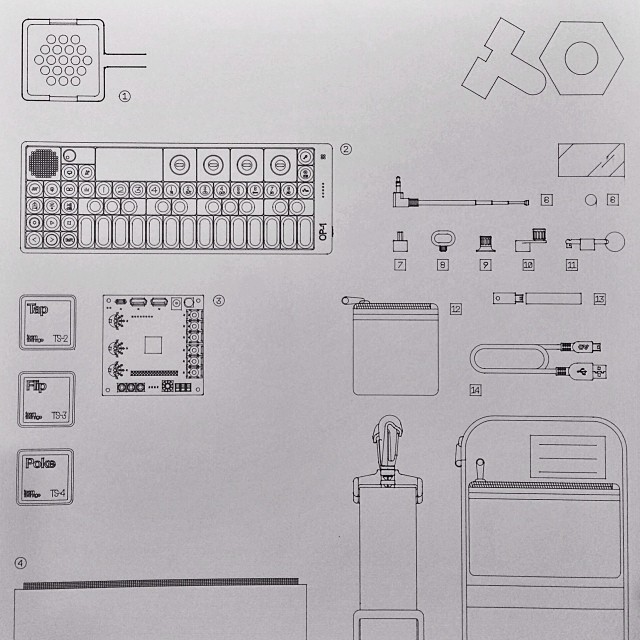
Apart from the fact that it’s a great name for a company, they also make totally awesome things.
Android Inventor 2 has arrived
I’ve messed about with Android App Inventor since it’s very early days, when Google brought it out and made it available to the public. Then of course it moved off to MIT who’ve done a great job with it so far, and now it’s finally done away with the download and files you need to install. It’s now all in the browser at last. I’m looking forward to trying it out at last.
The only downside is that at the moment there’s no easy way to port projects from App Inventor ‘Classic’ to the new version. Still, that’s not necessarily a bad thing.
 I am Ashley Elsdon